TapPC Evaluation & Walkthrough
Step-by-step verification guide and companion software packages provided for Google Play and Microsoft Store app review teams.
TapPC Video Demonstration
Watch the supplied demonstration alongside the setup instructions below. Testing requires an Android phone and an authorized Windows PC. Use your own test devices and save any open work before testing shutdown.
The walkthrough describes the current product. Phone verification unlocks the TapPC custom lock; it does not unlock the native Windows sign-in screen.
What TapPC Does
- Pairs one authorized phone with a PC through QR scanning, phone verification and PC approval.
- Sends supported lock, custom unlock and shutdown requests and displays received confirmations or connection errors.
- Shows paired-PC status and received lock/unlock history. The current Android release retains the last 24 hours of activity.
- Maintains a visible background connection notification and receives PC-status or administrator-managed messages.
- Offers PC lock settings, local background pictures and optional Enhanced Protection. Available functions depend on permissions and enabled policies.
Data and Permissions
- TapPC processes device and pairing identifiers, device names/models, command outcomes, connection status and timestamps.
- Errors, response times and feature/button diagnostics are processed to monitor reliability. Connection information may be processed by connected services.
- Camera permission is used for pairing QR scanning. Phone biometrics and screen-lock verification are handled by the operating system.
- TapPC receives the phone verification result, not raw fingerprints, face templates or the phone screen-lock PIN.
- TapPC does not provide screen sharing or intentionally collect contacts, SMS messages, PC-document contents or unrelated app activity for its lock controls.
- PC PIN verification data, settings and selected background pictures are kept as needed locally. Logout or uninstall does not automatically delete all separate service records.
Read the Privacy Policy and Terms. Contact info@codeevaai.com for applicable data-access or deletion requests; never send passwords, PINs or pairing credentials.
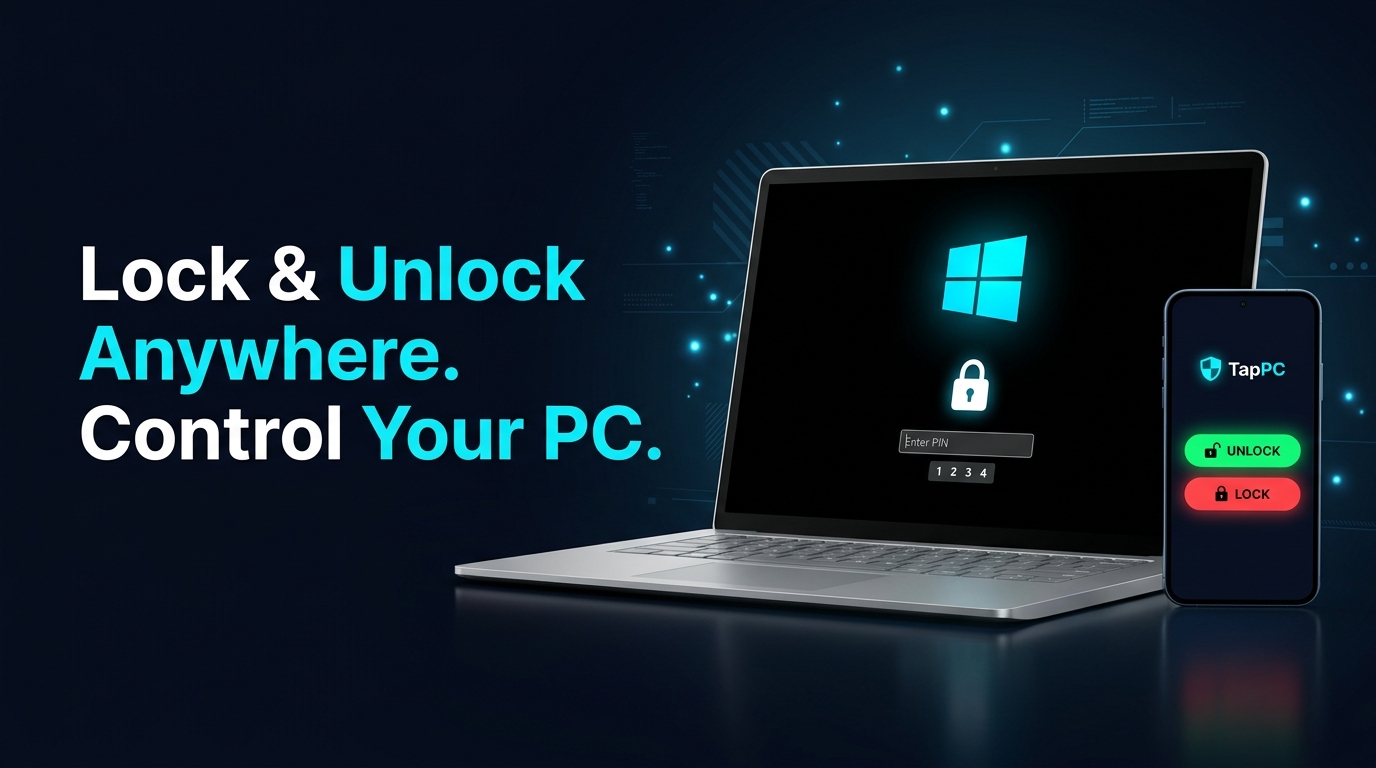
TapPC on Official Microsoft Store
The Windows Desktop Companion application is officially listed on the Microsoft Store. Reviewers and users can inspect the store listing or install directly via the Microsoft Store client.
Companion Evaluation Downloads
Direct access packages for official reviewer testing environments.
Windows Desktop Companion
Installs the background agent service and local dashboard (Win 10/11 64-bit).
Android Companion APK
Download the official Android app directly from Google Play.
Step-by-Step Reviewer Walkthrough
Follow this sequential procedure on a test PC and Android mobile device to evaluate end-to-end functionality.
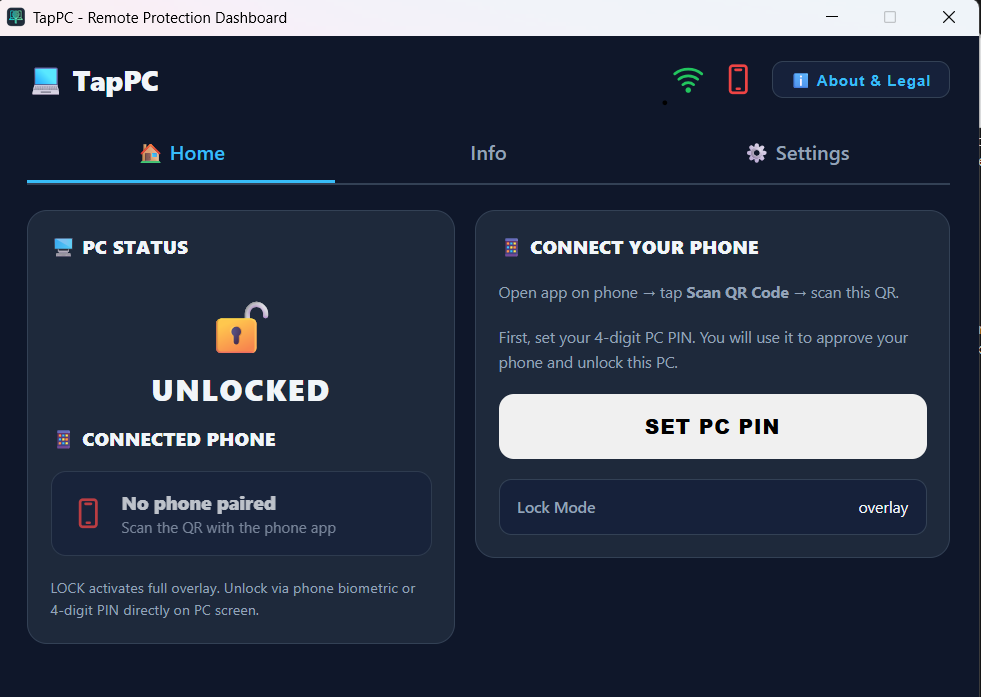
Windows Companion Installation & PC PIN Setup
Install and run the Windows companion application on your test machine.
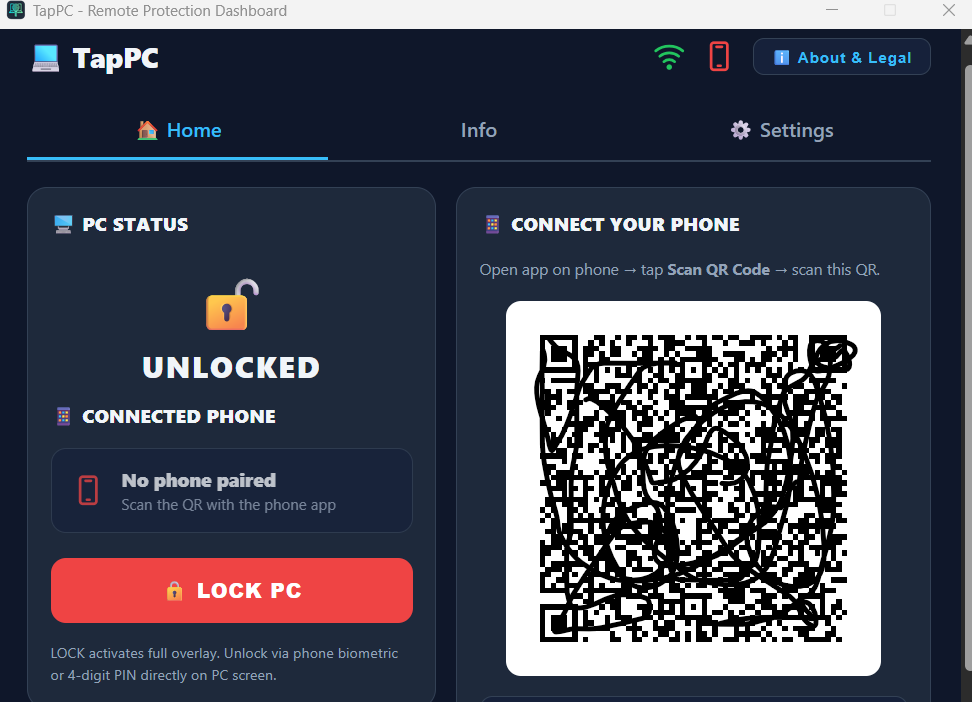
Open PC Pairing Tab & Display QR Code
Generate an encrypted pairing ticket on the Windows workstation.
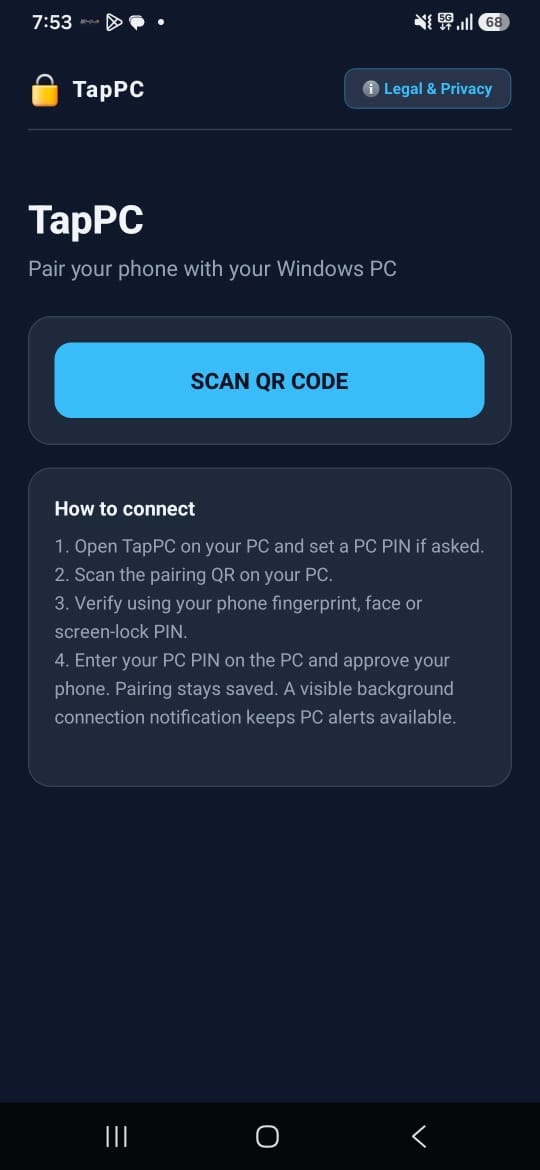
Launch Android App & Scan PC Screen QR
Use the companion mobile app to optically read the PC pairing code.
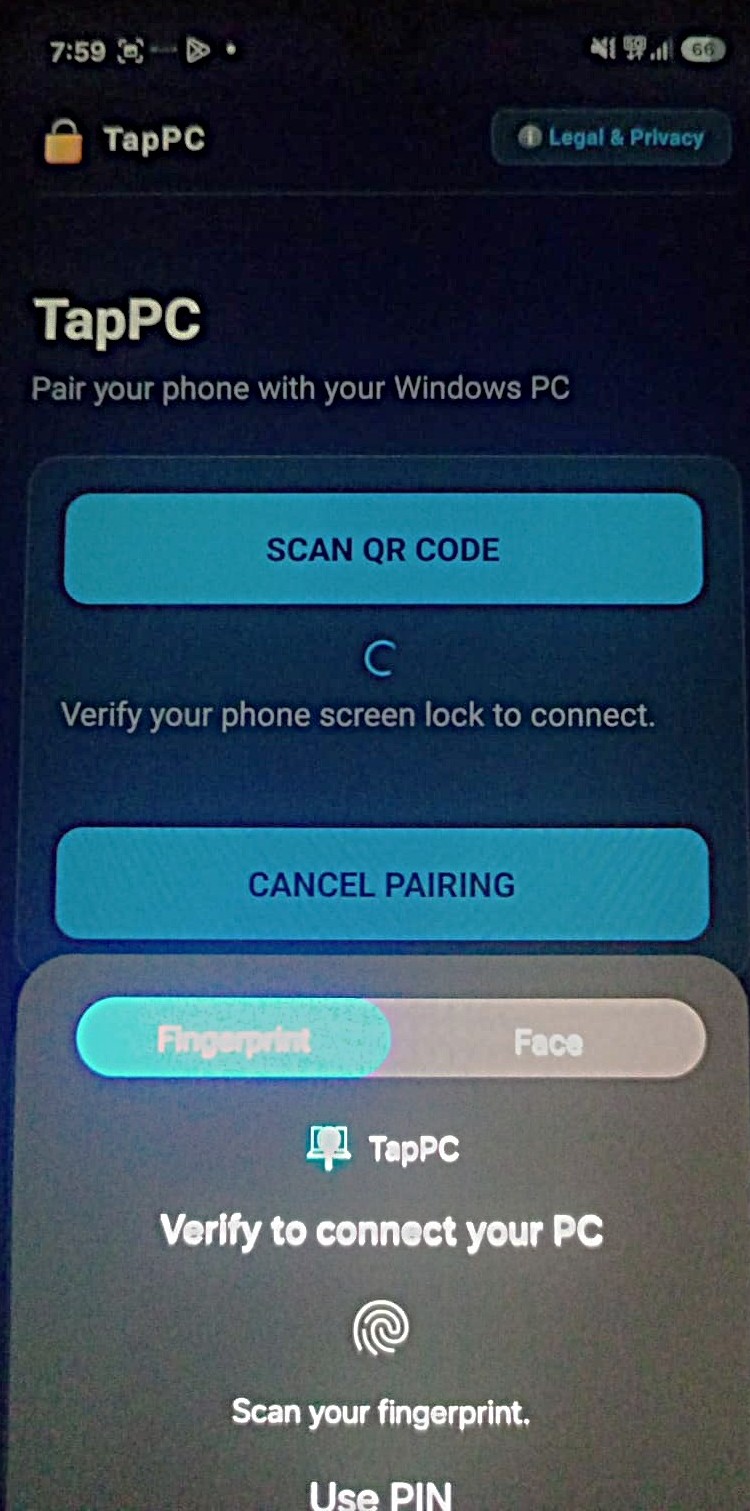
Verify Using Your Phone Screen Lock
Authenticate with your phone's biometric sensors to bind the session.
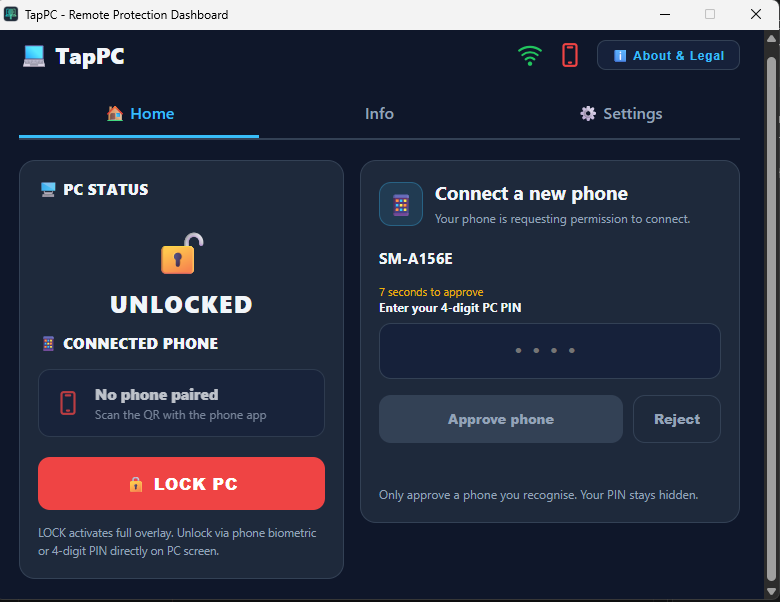
Confirm Pairing on Windows PC
Authorize the incoming connection on the Windows workstation.
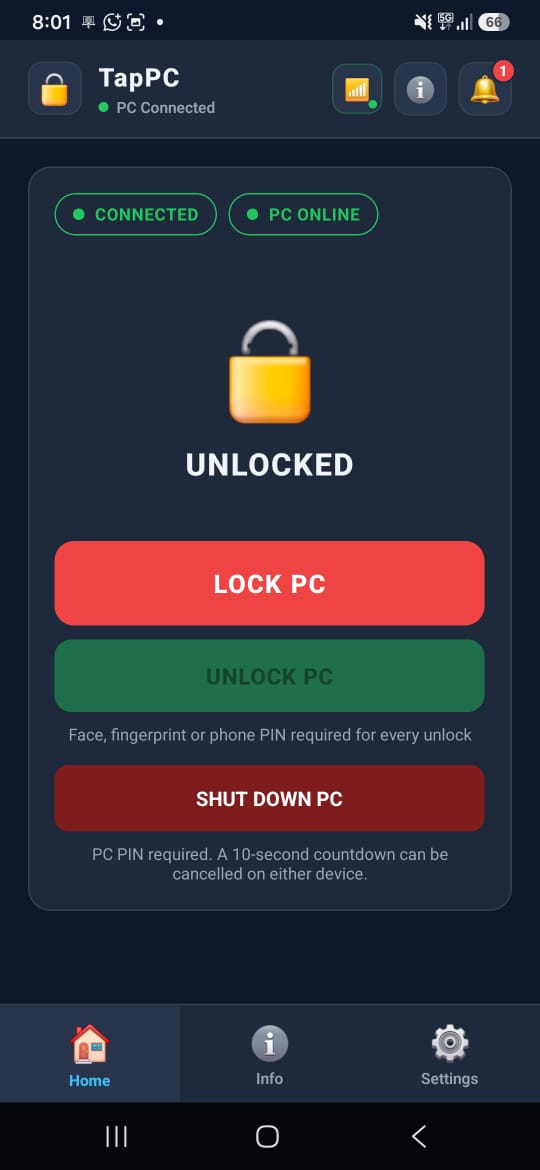
Test Remote Screen Lock & Biometric Unlock
Operate instant workstation lock and biometric unlock from your phone.
Confidential Testing & Evaluation Notice — Strict Legal Disclaimer
Authorized review and certification use only.
1. Confidentiality & Non-Distribution: This testing portal, instructions, and associated binary packages (Windows Companion EXE and Android Companion APK) are strictly intended for official application review and evaluation by Google Play and Microsoft Store review teams. Any unauthorized distribution, mirroring, public upload, or sharing with third parties without prior written authorization from CodeEvaAI is strictly prohibited.
2. Legal Enforcement: Unauthorized circulation, tampering, decompilation, or commercial exploitation will be prosecuted to the maximum extent permitted by applicable Cyber Law, Copyright Law, and Intellectual Property regulations.
3. Limitation of Liability: These software packages are pre-release evaluation builds provided "AS IS". CodeEvaAI, its proprietor, and affiliates expressly disclaim any liability for software conflicts, data loss, or system instability resulting from unauthorized deployment on non-testing or unmanaged environments.